Published on: January 14, 2026
8 min read
Getting started with GitLab Duo Agentic Chat
Learn the chat interface, model and agent selection, and best practices for effective AI collaboration across Web UI and IDEs.


Welcome to Part 2 of our eight-part guide, Getting started with GitLab Duo Agent Platform, where you'll master building and deploying AI agents and workflows within your development lifecycle. Follow tutorials that take you from your first interaction to production-ready automation workflows with full customization.
In this article:
- What is GitLab Duo Agentic Chat?
- Accessing GitLab Duo Agentic Chat
- Model selection
- Agent selection
- Common use cases
- Troubleshooting
What is GitLab Duo Agentic Chat?
GitLab Duo Agentic Chat is your primary interface for interacting with AI agents throughout your development workflow. Unlike simple Q&A chatbots that only answer questions, it's an autonomous AI collaboration partner that can take action on your behalf: Creating and modifying code, opening merge requests, triaging and updating issues/epics, and running workflows with full SDLC platform context. It does so while keeping you informed every step of the way.
🎯 Try GitLab Duo Agent Platform today!
Key capabilities:
- Code operations: Create files, edit code, and open merge requests.
- Project insights: Query issues, epics, merge requests, Git commits, CI/CD pipelines, analytics (GLQL), and security scans.
- Actionable tasks: Triage, update, or create issues and epics, remediate vulnerabilities, generate documentation and tests, fix failing CI/CD pipelines.
- Context awareness: Remember conversation history, understand project architecture, and search the codebase, wiki, and GitLab docs.
- Extensibility: Integrate with external services through Model Context Protocol (MCP).
- Multi-agent support: Use specialized agents for different tasks.
🎯 Try it now: Interactive demo of GitLab Duo Agentic Chat — Explore the chat interface and features.
Accessing GitLab Duo Agentic Chat
| Environment | How to Access | Notes |
|---|---|---|
| Web UI | Click Duo icon in top-right corner | Persistent panel, stays open as you navigate |
| VS Code | Primary Side Bar > GitLab Duo Agent Platform > Chat tab | Integrated into your IDE workflow |
| JetBrains | Tool window > GitLab Duo Agent Platform > Chat tab | Available in IntelliJ, PyCharm, etc. |
| Visual Studio | Extensions > GitLab > "Open Agentic Chat" | Windows only, GitLab 18.3+ |
Web UI panel features
- Collapsed: Icon visible in top-right
- Panel open: Sidebar slides out (~400px width)
- Maximized: Expands for detailed responses
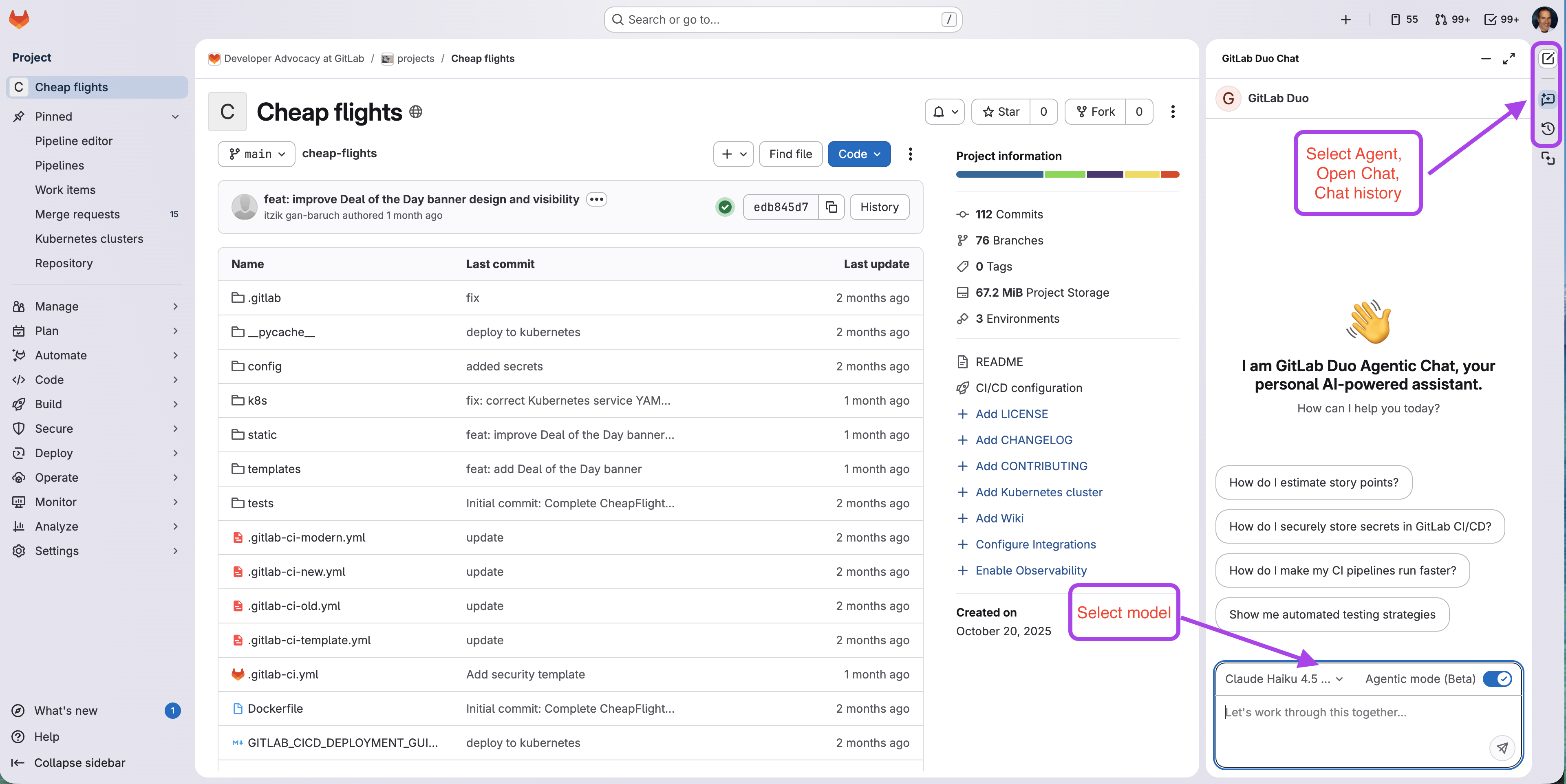
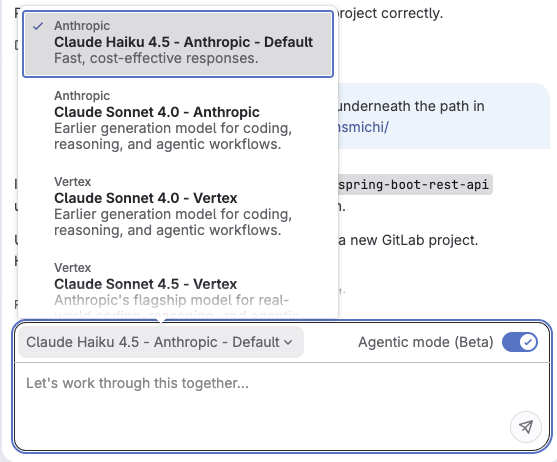
Model selection
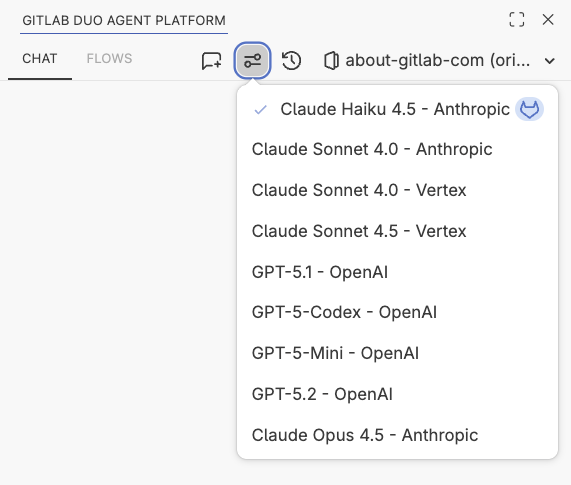
Large language models (LLMs) excel at different tasks and knowledge requirements. Choose the right model for your needs when necessary.
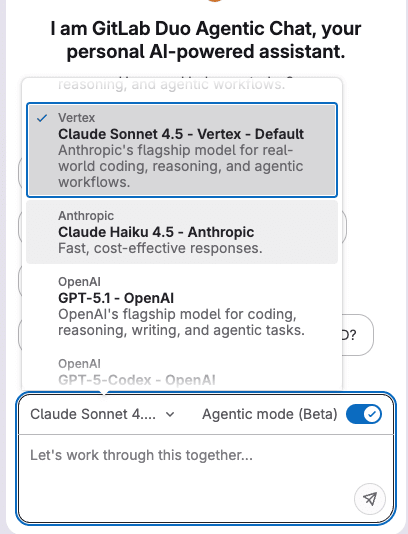
Configuration levels
- Group-level: Set by Group Owner, applies to all users
- User-level: Individual control when group allows
Agent selection
Agents are specialized AI collaboration partners for specific tasks. Switch between them based on your needs:
| Agent | Description | Use For |
|---|---|---|
| GitLab Duo | General-purpose development collaboration (default agent) | Getting started; questions on algorithms, architecture, and design patterns; debugging, refactoring, and explaining code |
| Planner | Product management and planning workflows | Issue creation, epic planning, roadmap assistance, attention triage |
| Security Analyst | Vulnerability management and security workflows | Security impact analysis, vulnerability triage, remediation |
| Data Analyst | Query, visualize, and surface data across GitLab | Volume analysis, team performance, trend analysis, status monitoring, work item discovery, GLQL query generation |
| Custom Agents | Created by your team for specific needs | Team-specific workflows, domain expertise |
Agent selection
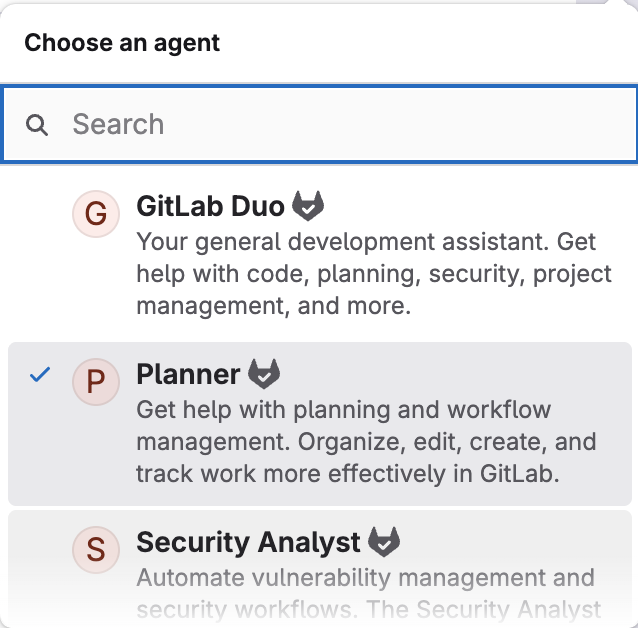
How to switch agents
- Open GitLab Duo Agentic Chat.
- IDE: Click the agent dropdown (below model selector).
- Web UI: Create a new chat.
- Select the agent you need.
Common use cases
Issue management and triage
For issue management and planning workflows, use the Planner Agent, a specialized agent designed for product management tasks.
Example prompts:
- "List all open issues labeled 'bug' and 'high-priority' created in the last 30 days."
- "Create an issue for implementing user authentication with OAuth2, include acceptance criteria and technical requirements."
- "Analyze Issue #456 and suggest related issues that might have the same root cause."
- "Break down Epic #123 into smaller tasks with estimated complexity."
Vulnerability analysis and remediation
For security workflows, use the Security Analyst Agent, a specialized agent designed for vulnerability management and remediation.
Example prompts:
- "Show me all critical vulnerabilities in the latest pipeline scan."
- "Triage all vulnerabilities from the latest security scan and identify which are false positives."
- "Explain vulnerability #789 in simple terms and show me where it's located in the code."
- "What's the recommended fix for the SQL injection vulnerability in the user search endpoint?"
- "Create an MR to fix the XSS vulnerability found in
src/components/UserProfile.vue."
Code understanding and documentation
Get answers about your codebase without having to manually search through files with the GitLab Duo Agent.
Example prompts:
- "How does the authentication flow work in this application?"
- "Find all places where the
sendEmailfunction is called." - "Explain what the
calculateDiscountmethod does insrc/pricing/calculator.ts." - "Generate documentation for the API endpoints in
src/api/routes/." - "What design patterns are used in the
src/services/directory?"
Onboarding to a new project
Quickly get up to speed on a new project by understanding its architecture, setup, and dependencies using the GitLab Duo Agent.
Example prompts:
- "Give me an overview of this project's architecture and main components."
- "Where is the database schema defined?"
- "How do I set up my local development environment?"
- "What are the main dependencies and what do they do?"
Debugging and pipeline troubleshooting
Quickly identify and resolve issues in your code and CI/CD pipelines with AI-powered analysis using the GitLab Duo Agent.
Example prompts:
- "Why is the CI/CD pipeline failing on the test stage?"
- "Analyze the error logs from Job #12345 and suggest fixes."
- "Why did Pipeline #9876 fail? Show me the error logs from the failed deployment job."
- "The application crashes when processing large files. Help me debug this."
- "Review the recent commits that might have caused the performance regression."
- "How can I optimize the build time for this pipeline?"
- "Create a new CI/CD job to run security scans on every MR."
Code review and quality improvement
Get AI assistance during code reviews to catch issues and improve code quality using a Custom Agent trained on your team's coding standards and best practices.
Example prompts:
- "Review MR !234 for potential bugs and security issues."
- "Suggest performance optimizations for the database queries in this MR."
- "Check if MR !456 follows our coding standards and best practices."
- "Identify any accessibility issues in the new UI components."
Feature implementation
Accelerate development by generating code, tests, and documentation using the GitLab Duo Agent.
Example prompts:
- "Create a REST API endpoint for user registration with validation."
- "Generate unit tests for the
OrderServiceclass with 80% coverage." - "Implement pagination for the product listing page."
- "Add error handling and logging to the file upload functionality."
Refactoring and code improvement
Modernize and improve existing code with AI guidance using GitLab Duo Agent.
Example prompts:
- "Refactor the
UserControllerto follow SOLID principles." - "Convert this JavaScript file to TypeScript with proper type definitions."
- "Suggest improvements to make this function more testable."
- "Identify code duplication in the
src/utils/directory and suggest how to consolidate it." - "Modernize the project from Java 8 to 21. Follow the guidance in Epic 188."
- "Create a migration plan for modernizing the COBOL mainframe code, and evaluate Java/Python."
Troubleshooting
| Issue | Possible Causes | Solutions |
|---|---|---|
| Chat not appearing | • Duo not enabled • Insufficient permissions | • Enable GitLab Duo for project • Verify Developer+ role |
| Model selection unavailable | • Group policy locked • Version too old | • Check with group owner • Upgrade to GitLab 18.4+ |
| More troubleshooting tips are available in the documentation. |
What's next?
GitLab Duo Agentic Chat is supported in IDEs and the GitLab UI. Future releases will bring terminal support with GitLab Duo CLI, currently in development. Follow the product epic for more insights. Now that you've learned GitLab Duo Agentic Chat, explore the different types of agents and how to create custom ones in Part 3: Understanding agents. Explore foundational agents, create custom agents for your team, and integrate external agents like Claude Code and OpenAI Codex.
Resources
We want to hear from you
Enjoyed reading this blog post or have questions or feedback? Share your thoughts by creating a new topic in the GitLab community forum.
Share your feedback